
Protect links with passwords and expiry dates
Ask visitors for a password before they are redirected, and make links stop working on a date you choose.
Open Create short link
Some links should not stay open to everyone forever: a price list for one client, a sign-up form that closes on Friday. Two settings on the Create page handle both cases.
Open the link settings
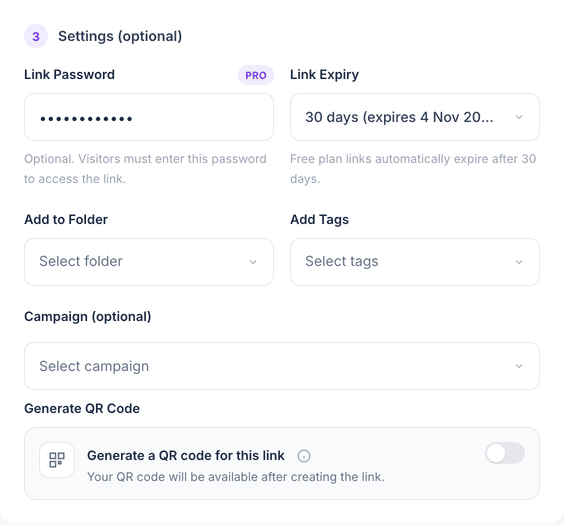
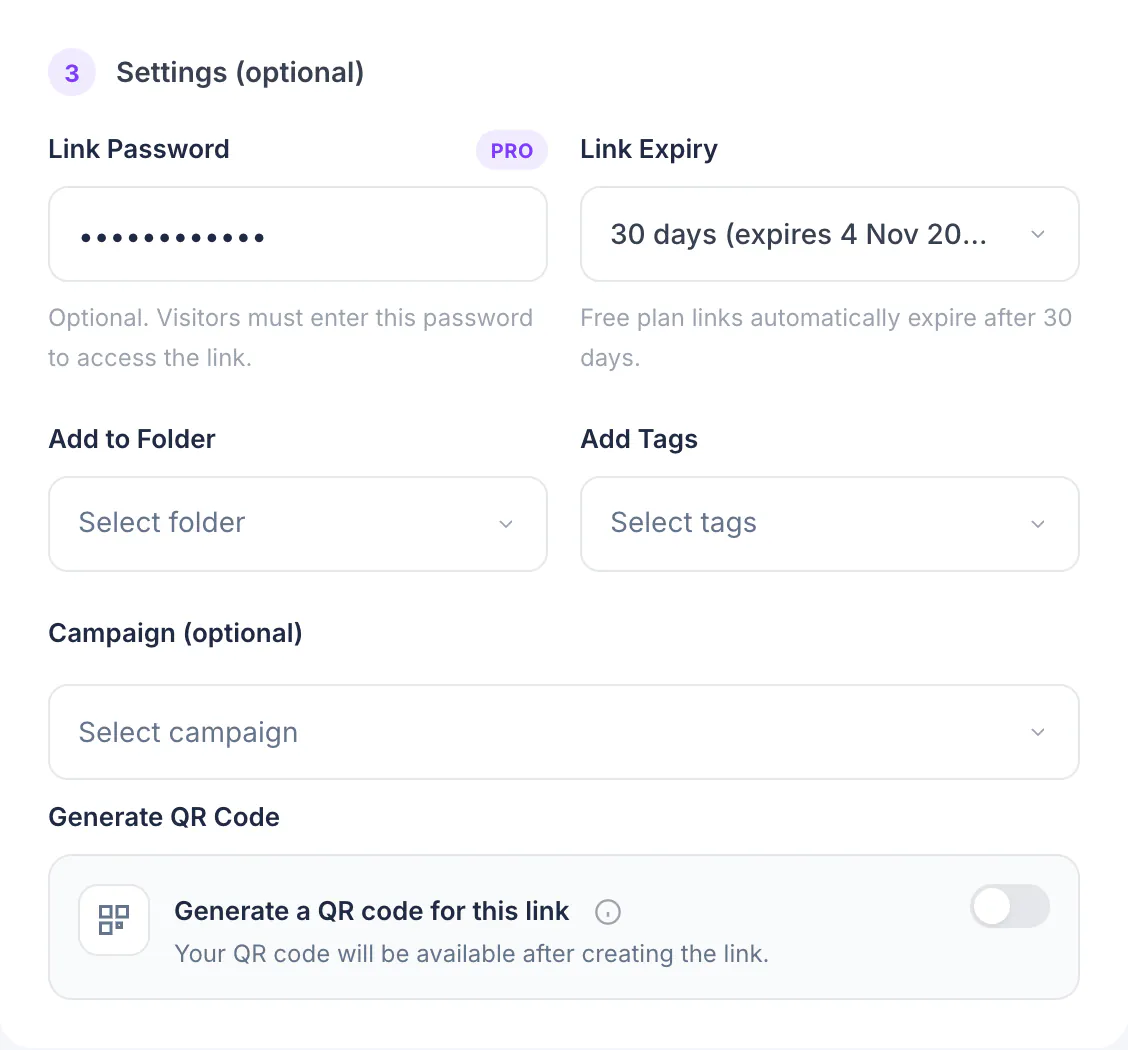
On Create short link, paste your URL and switch to Use your custom domain. The Settings (optional) step expands to show Link Password and Link Expiry.
Set a password
Type a password of at least 8 characters into Link Password. Anyone who opens the short link sees a page asking for it, and is only redirected after entering it correctly.
The password is never shown again, so share it with your audience separately from the link.
A QR code can be protected the same way: the Password and Expiry fields are on the Create QR Code page too.
Choose when the link expires
Open Link Expiry and choose 7 days, 30 days, 90 days or Never expire. After the expiry date the short link stops redirecting.
Expired links stay in My Links. Set the status filter to Expired to list them.
Test it before you share it
Create the link, then open it in a private browser window. You should be asked for the password before the destination opens. Share the link and the password through different channels.
What you have now
The link only opens for people who know the password, and closes by itself when its time is up.