
Manage, archive and restore links
Copy and duplicate links, point one at a new destination, and archive, restore or delete links you no longer need.
Open My Links
Links do not stay the same forever: a campaign ends, a page moves, a typo slips through. Everything you need to look after a link is one click away in My Links and on Home.
Open a link's menu
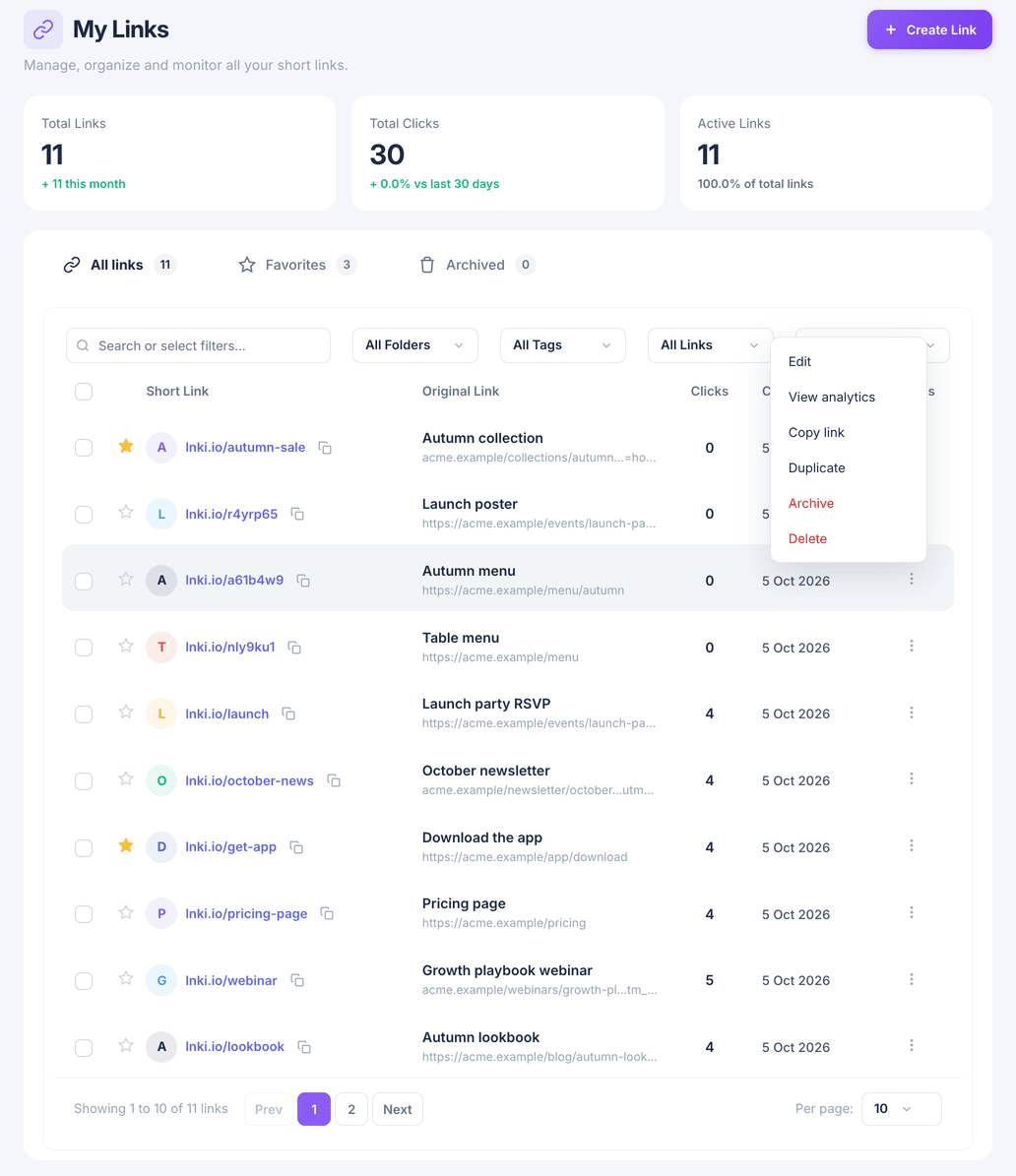
In My Links, choose the three dots at the end of a row. Copy link puts the short link on your clipboard, and Duplicate makes a second link to the same destination, for example to share on another channel and count its clicks separately.
Point a link at a new destination
On My Links (or under Recent links on Home), open the link's menu and choose Edit. Enter the new address under Destination URL and choose Save changes.
The short link stays exactly the same, so anything already printed or posted now leads to the new page.
Archive a link you are done with
Choose Archive from the row menu. The link stops redirecting straight away and moves to the Archived tab. Its click history is kept.
Restore it if you change your mind
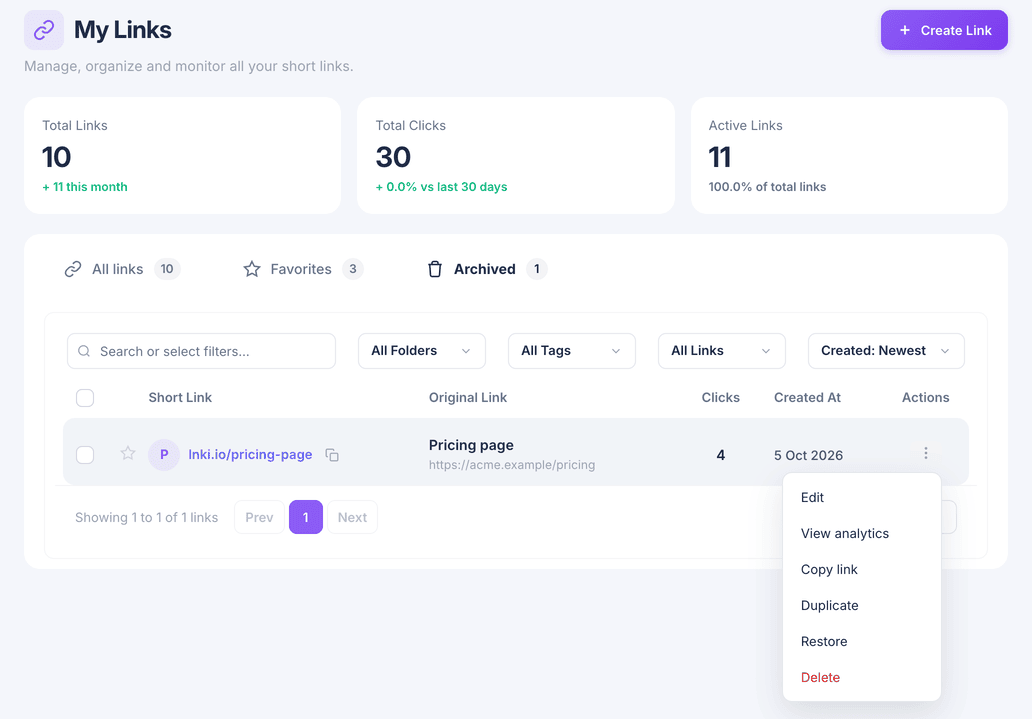
Open the Archived tab, open the link's menu and choose Restore. The link returns to All links and redirects again, on the same short address.
Delete a link for good
Delete asks you to confirm, because it cannot be undone: the short link stops working, and its click history and QR code are deleted with it.
If you only want a link out of the way, archive it instead.
Deleting frees nothing you need: paid plans have no limit on links. Archive by default, and delete only what should never have existed.
What you have now
You can keep My Links current without losing history, and change where a link leads without changing the link.