
Create and customize a QR code
Turn any link into a QR code, style its pattern and colours, add your logo and download it for print.
Open Create QR Code
A Lnki QR code points at a short link, so every scan is counted and the destination can be changed later without reprinting. This tutorial builds one from a URL and exports it.
Start a new QR code
Open QR Codes in the sidebar and choose Create QR Code.
Pick the link it opens
Under Select Link choose Paste long URL to shorten a new address on the spot, or Existing link to reuse one from My Links.
Give the code a Name so you can recognise it in the list, and optionally a folder and tags.
Design it
Everything under Customize QR Code updates the preview as you change it:
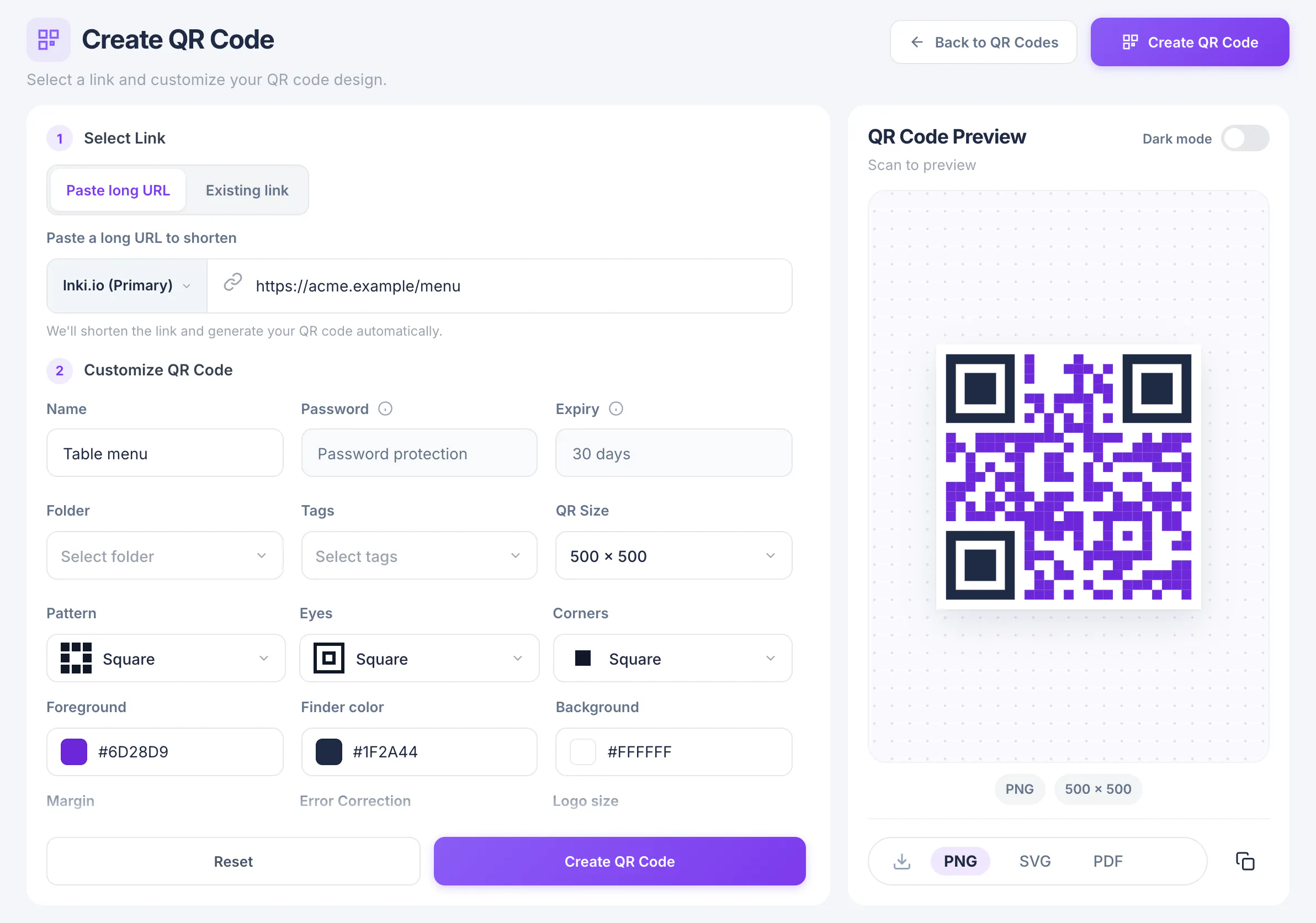
Pattern, Eyes and Corners set the shape of the modules and the three corner markers. Foreground, Finder color and Background set the colours. QR Size and Margin control the export size and the quiet zone around it.
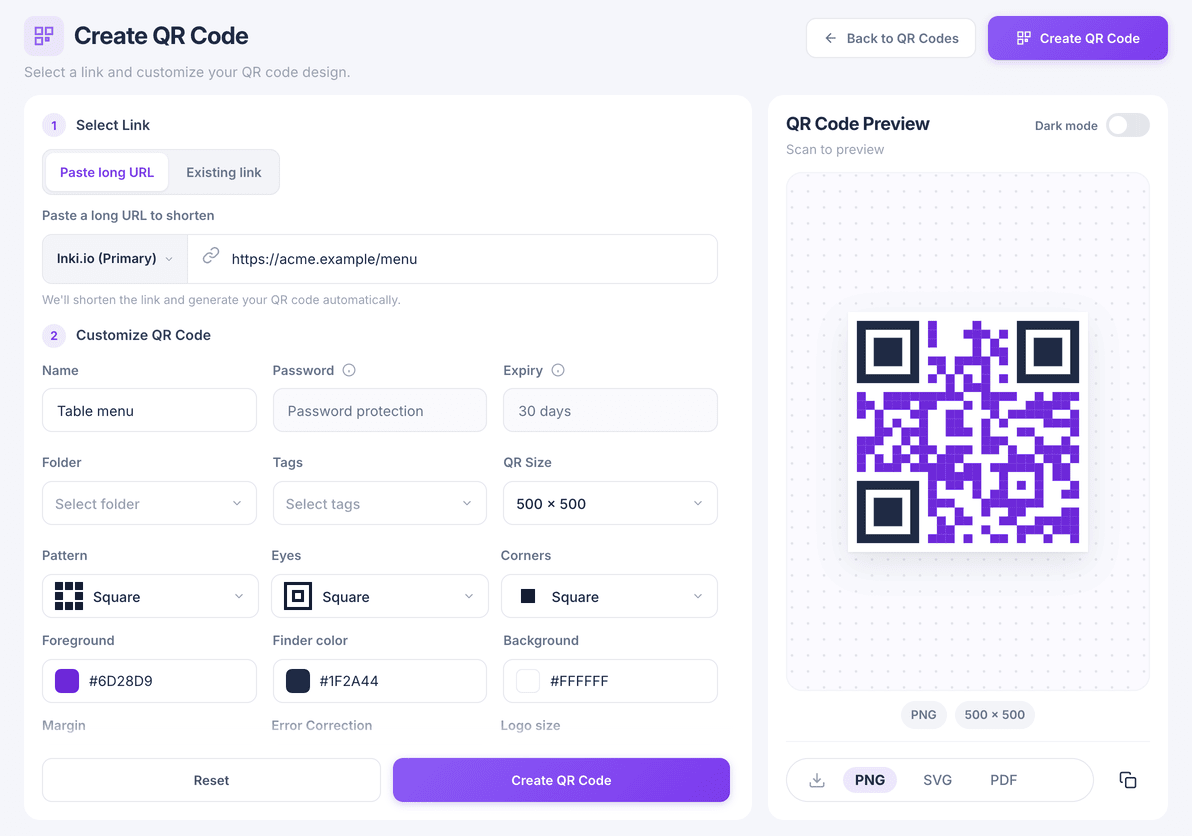
Keep strong contrast between foreground and background, and a light background. Use the Dark mode switch on the preview to check how the code looks on a dark surface.
Add a label or your logo
Turn on Add Label to print a short caption under the code, such as “Scan for the menu”.
Turn on Add Logo and upload a JPG, PNG or SVG of up to 2 MB to place it in the centre. Adjust Logo size, and raise Error Correction if the logo covers a lot of the code so it still scans reliably.
Create and download
Choose Create QR Code. In the confirmation, pick PNG, SVG or PDF and download it. SVG and PDF stay sharp at any print size.
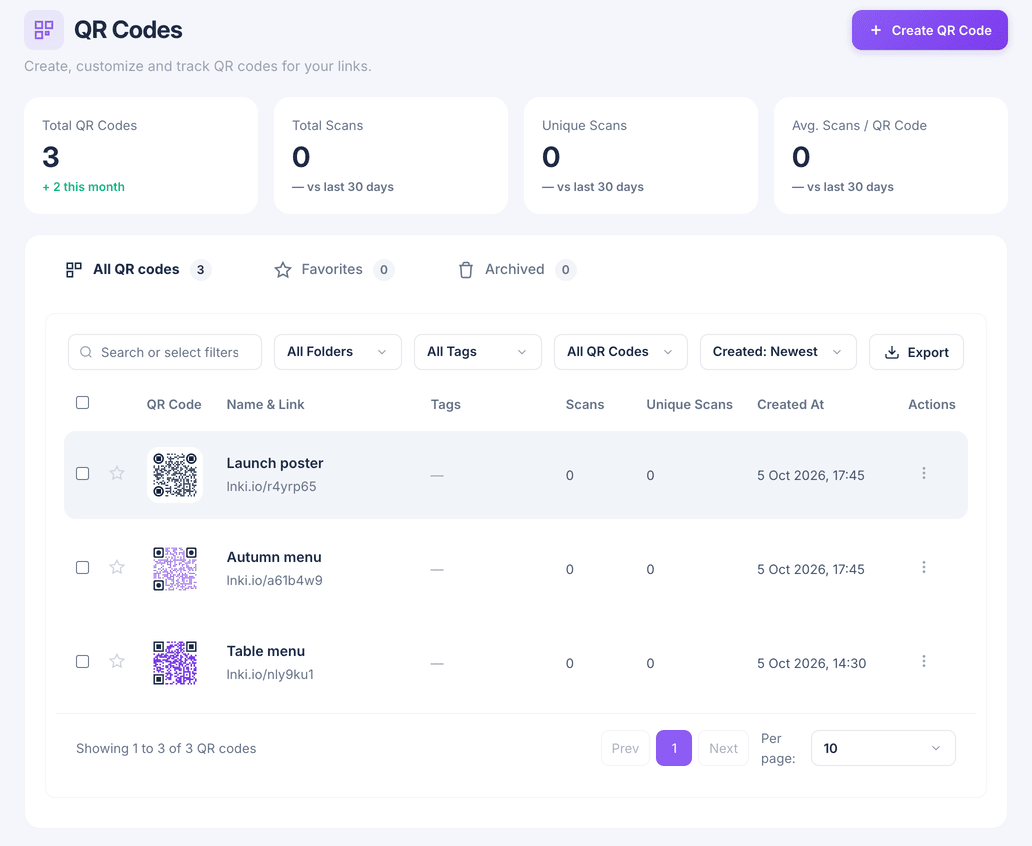
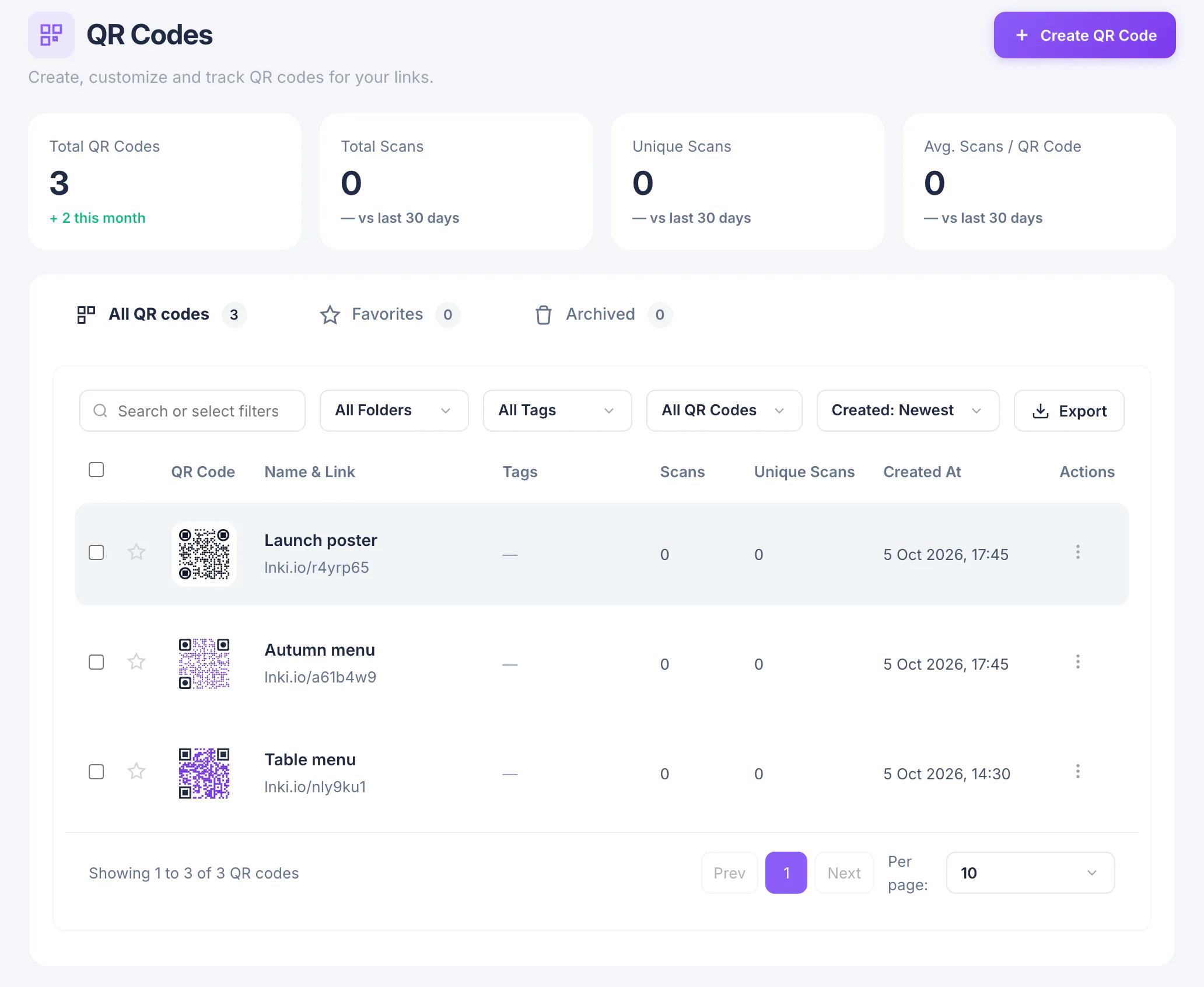
The code is now listed under QR Codes, where you can reopen it, change the design and download it again.
What you have now
You have a branded, trackable QR code. Test it with your phone camera before sending anything to print.