
Organize links with folders and tags
Group links by project with folders, label them with tags, and filter My Links down to what you need.
Open Folders
A handful of links needs no system. A few hundred do. Folders give each link one home, such as a client or a campaign; tags add labels that cut across folders. A link can carry up to 10 tags.
Create a folder
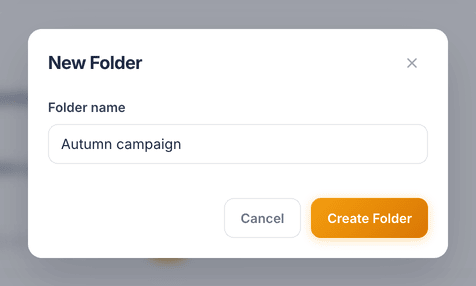
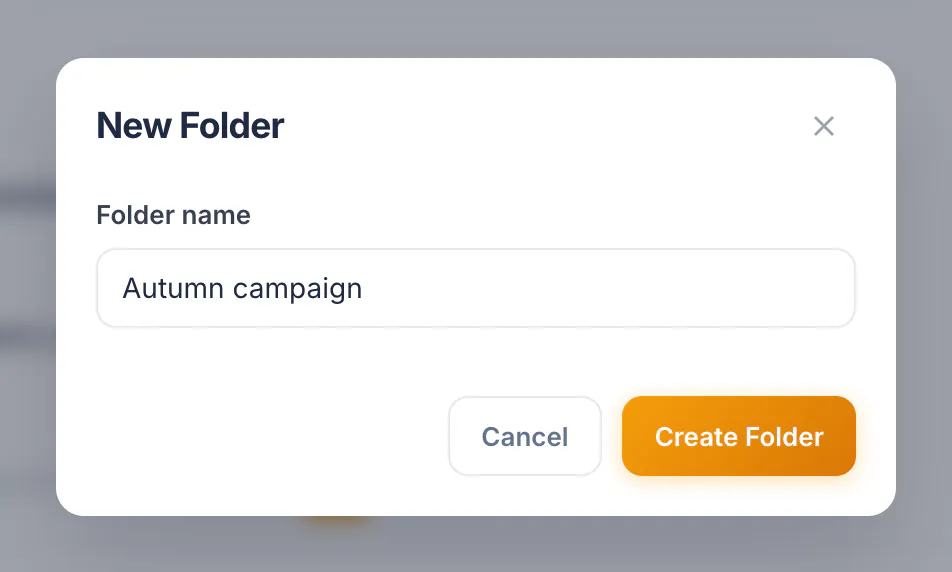
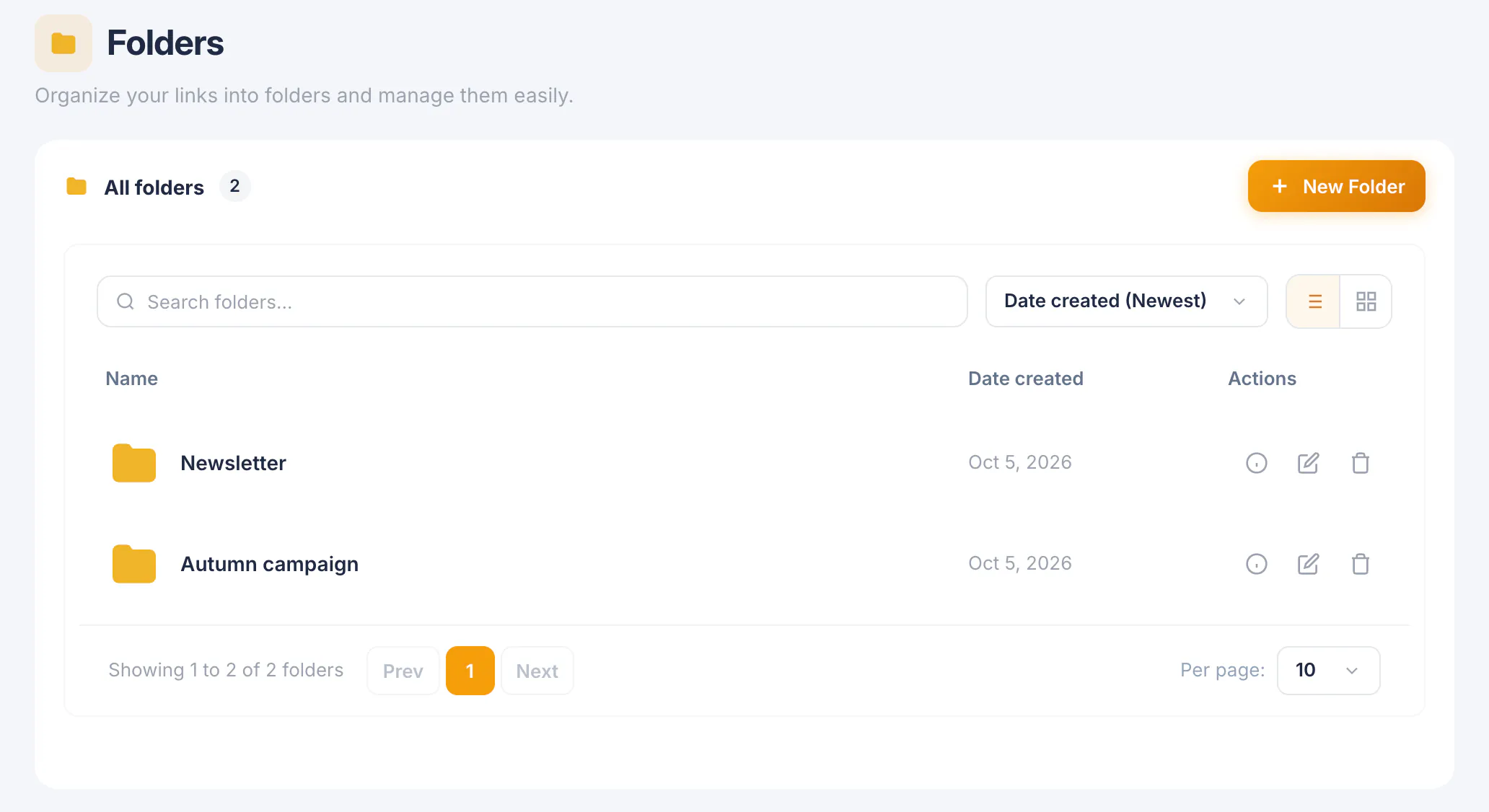
Open Folders and choose New Folder. Type a name, for example Autumn campaign, and choose Create Folder.
See your folders
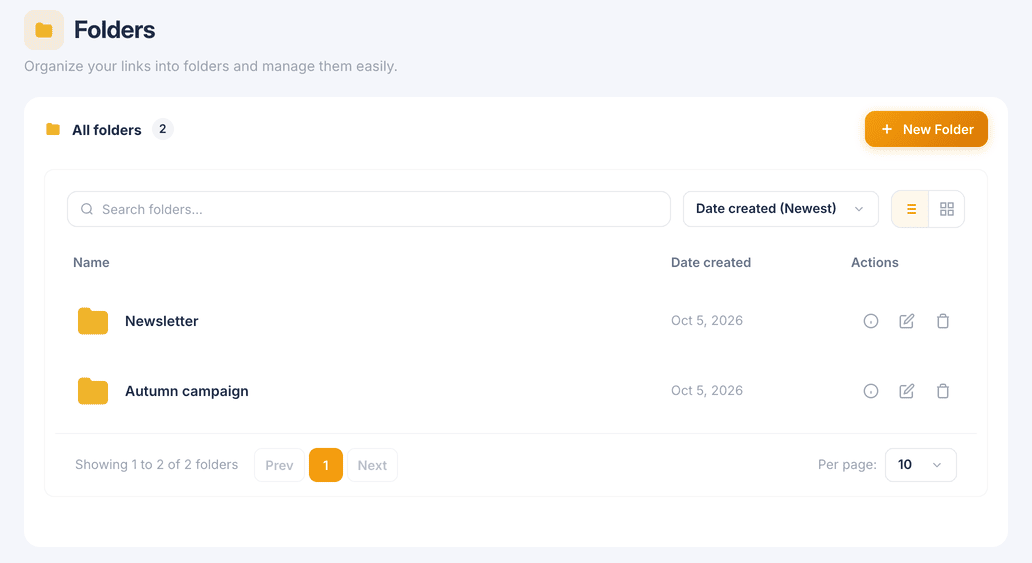
The folder appears in the list straight away. From here you can search folders, switch between list and grid view, rename a folder or delete it.
File a link while you create it
On Create short link, the settings include Add to Folder and Add Tags. Pick a folder and one or more tags before you choose Create Short Link.
To file a link that already exists, open the folder on the Folders page and choose Add Link. Existing link moves one of your links into the folder; New URL shortens a new address straight into it.
Filter My Links
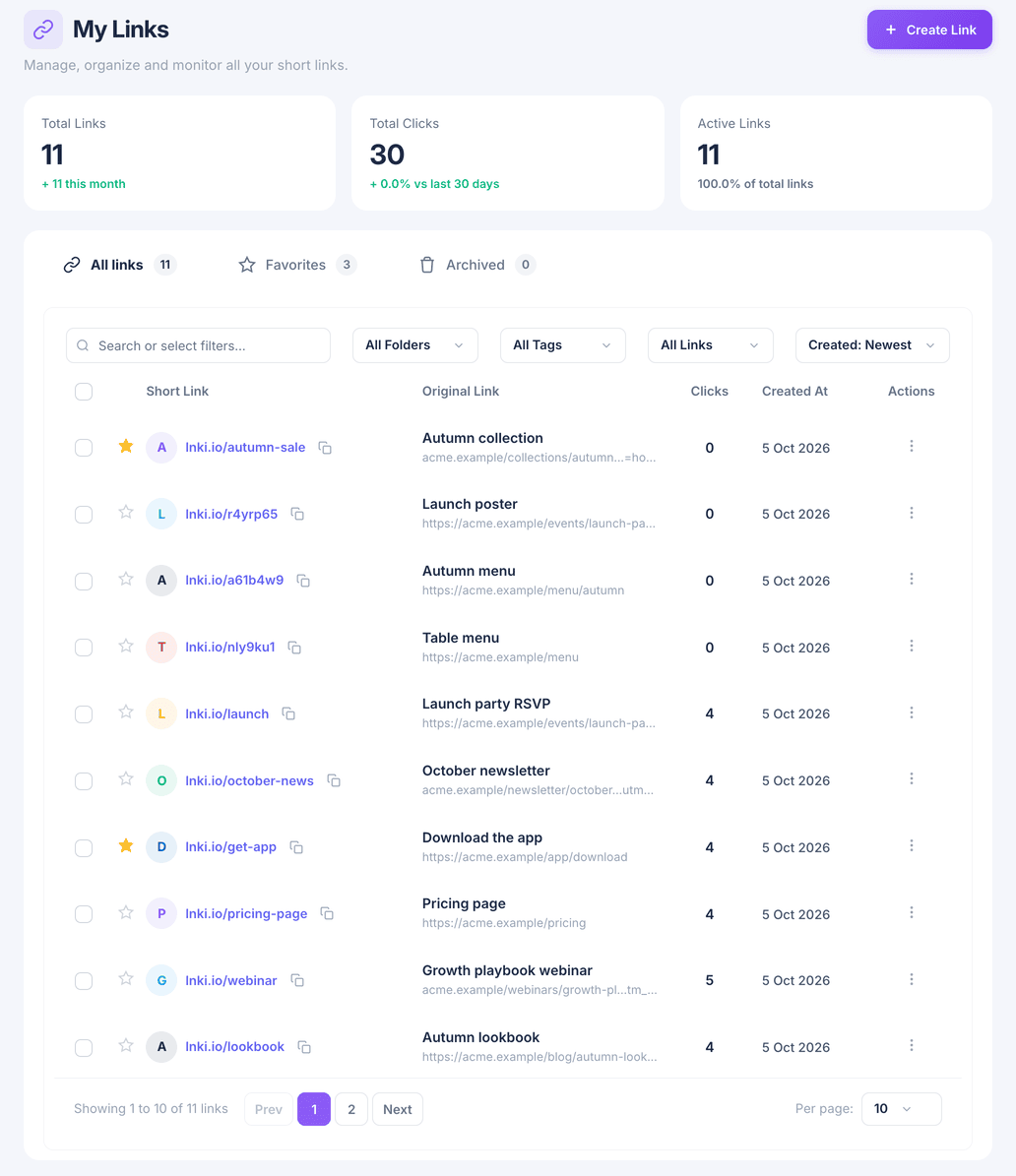
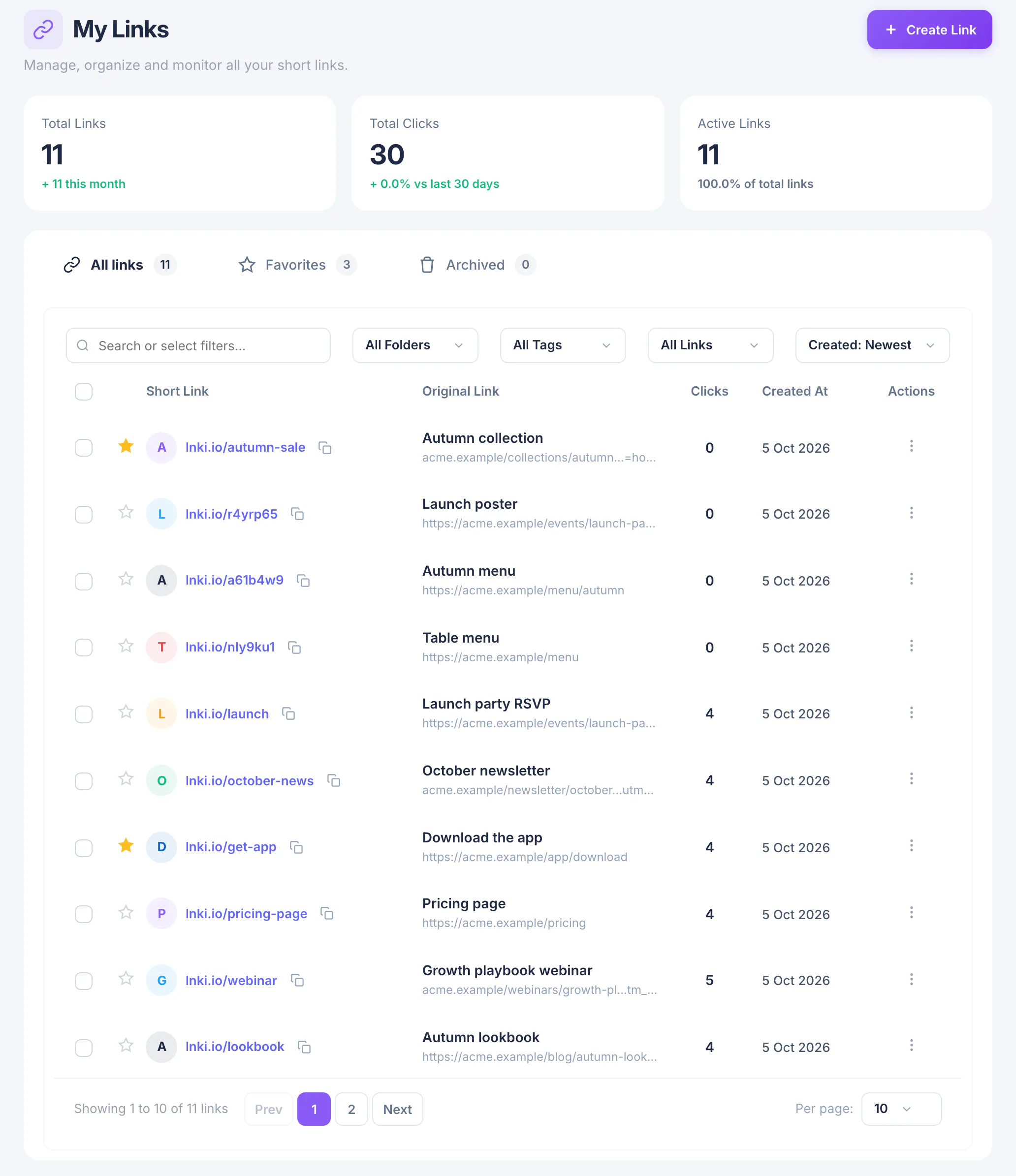
At the top of the My Links table, All Folders narrows the list to one folder and All Tags to links carrying the tags you pick. Combine them with the search box and the sort menu to find any link quickly.
What you have now
Your links have a home and a label, and you can pull up any group of them in a couple of clicks.