
Build UTM links for a campaign
Create one tagged short link per channel in a single pass, then see which channel brings the clicks.
Open Campaigns & UTM
UTM parameters tell your analytics where a visitor came from. Writing them by hand is slow and error-prone, so the Builder does it for you: one destination, one campaign, and a ready-made short link for every channel you plan to post on.
Open the Builder
Open Campaigns & UTM in the sidebar and switch to the Builder tab.
Enter the destination
Paste the page people should land on into Destination URL. Any query parameters it already has are kept.
Choose or create the campaign
Pick a campaign under Campaign, or choose New campaign to create one. Its name becomes
utm_campaignon every link.Pick the channels
Under Where will you share it? select every channel you will use, such as Email newsletter, LinkedIn or Google Ads. Each one sets its own
utm_sourceandutm_mediumand is filed under the matching GA4 channel group.The Live preview shows the final URL for each channel as you go. Content & term are optional, for telling variants apart.
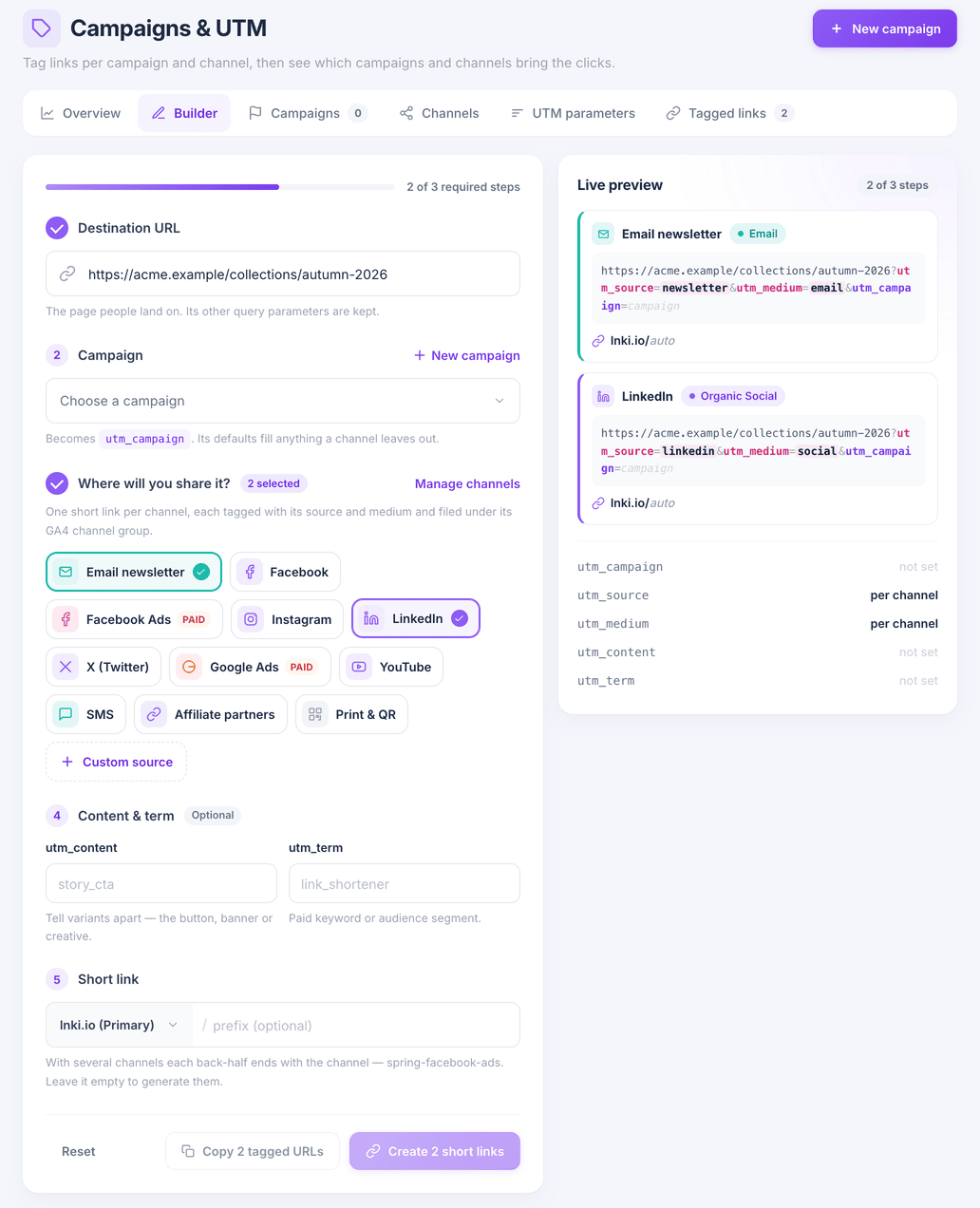
Missing your channel? Custom source adds one, and Manage channels edits the list.
Create the links
Choose Create short link; with several channels selected the button creates them all at once. Use Copy all links to grab them, or View tagged links to see them listed.
As clicks arrive, the Overview tab compares campaigns and channels side by side.
What you have now
Every channel has its own tagged short link, named consistently, and your reports can tell them apart.